
Jupyter notebooks#
A Jupyter notebook is an application to edit and run notebook documents via a web browser. A notebook document, in turn, is a human readable file in JSON format that contains both program code (written in e.g. Python) and text elements (paragraphs, figures, links, etc. using markdown) organized into cells. Notebook documents containing Python code have the file extension .ipynb.
You start a Jupyter notebook on the command line as follows
$ jupyter-lab
A text cell, such as this one, allows you to document and explain your program implementation in a far more detailed manner compared to conventional program comment lines. Key equations and derivations are readily included:
A text cell is written in markdown and converted to its final form by pressing the key combination Shift-Enter.
Text cell example#
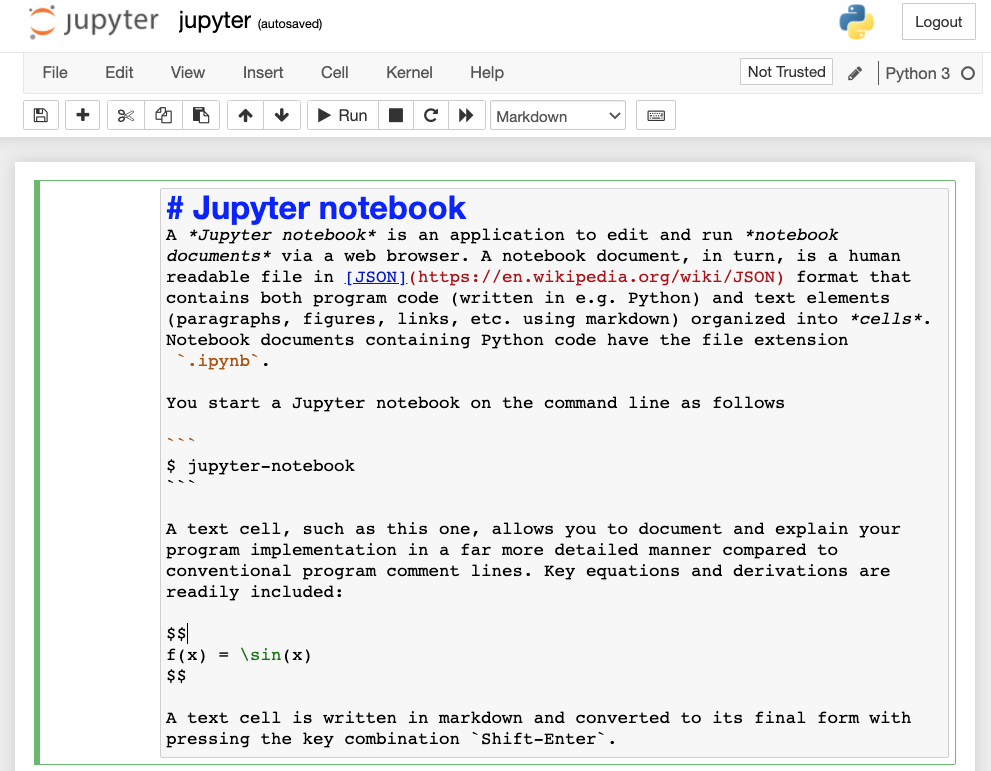
Fig. 1 Web browser interface to a Jupyter notebook containing a text cell in markdown.#
Code cell example#
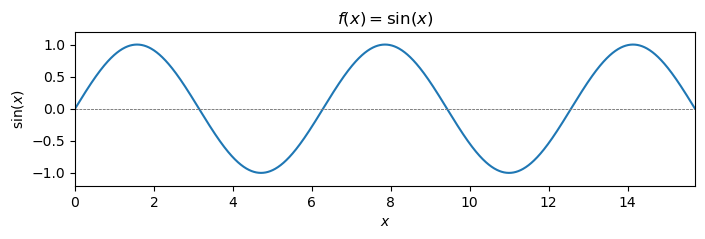
This particular notebook also contains three code cells below to plot the elementary mathematical function sin(x) on the interval [0,5π]. In doing so, it makes use of the Python modules NumPy
and Matplotlib that are further introduced in the coming section. Code cells can be run seperately by pressing the key combination Shift-Enter but do remember that program code in one cell may depend on the results from others.
import matplotlib.pyplot as plt
import numpy as np
# this is a comment line
x = np.arange(0, 5*np.pi, 0.01)
f = np.sin(x)
fig = plt.figure(1, figsize=(8,2))

plt.plot(x,f)

plt.axhline(y=0.0, color='0.5', linewidth = 0.7, dashes = [3,1,3,1])
plt.setp(plt.gca(), xlim = (0, 5*np.pi), ylim = (-1.2, 1.2))
plt.title(r'$f(x) = \sin(x)$')
plt.xlabel(r'$x$')
plt.ylabel(r'$\sin(x)$')


plt.show()
Essential tips#
Auto-completion#
Press tab to auto-complete commands. If there is no unique completion available, a list of suggestions is provided.
E.g. if you enter plt. and press tab, you will get a list of the methods that pyplot implements.
Keyboard shortcuts#
Shortcut |
Result |
|---|---|
|
Enter edit mode of cell |
|
Leave edit mode of cell |
|
Copy cell |
|
Paste cell |
|
Merge cell with that below |
|
Split markdown cell at cursor position |
|
Change cell to markdown type |
|
Change cell to code type |
|
Save checkpoint of notebook |